Show every store, branch or location on one branded map, then embed it on your website with no coding. Here is a real one from a Bay Area flower shop, and how to build one.
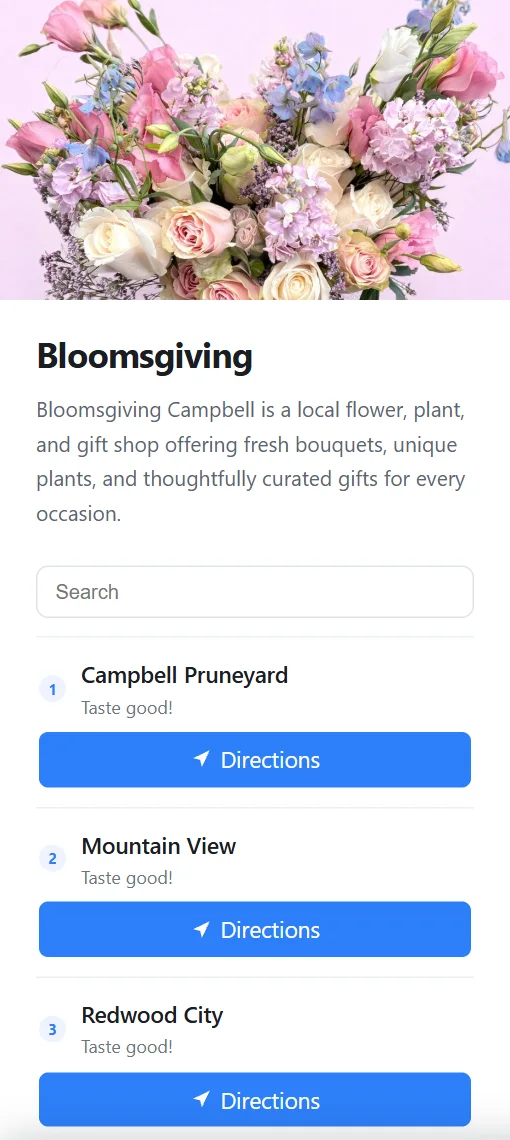
This is the live map for Bloomsgiving, a flower, plant and gift shop with three stores in Campbell, Mountain View and Redwood City, each shown as a photo of its storefront. Tap a store for its details and a Directions button, or use the list to jump straight to any store.
Click Marker on the Overlay toolbar and search for an address, like “301 Castro Street, Mountain View”, and the pin drops exactly on it. The marker's settings open beside the map, ready for the next step.
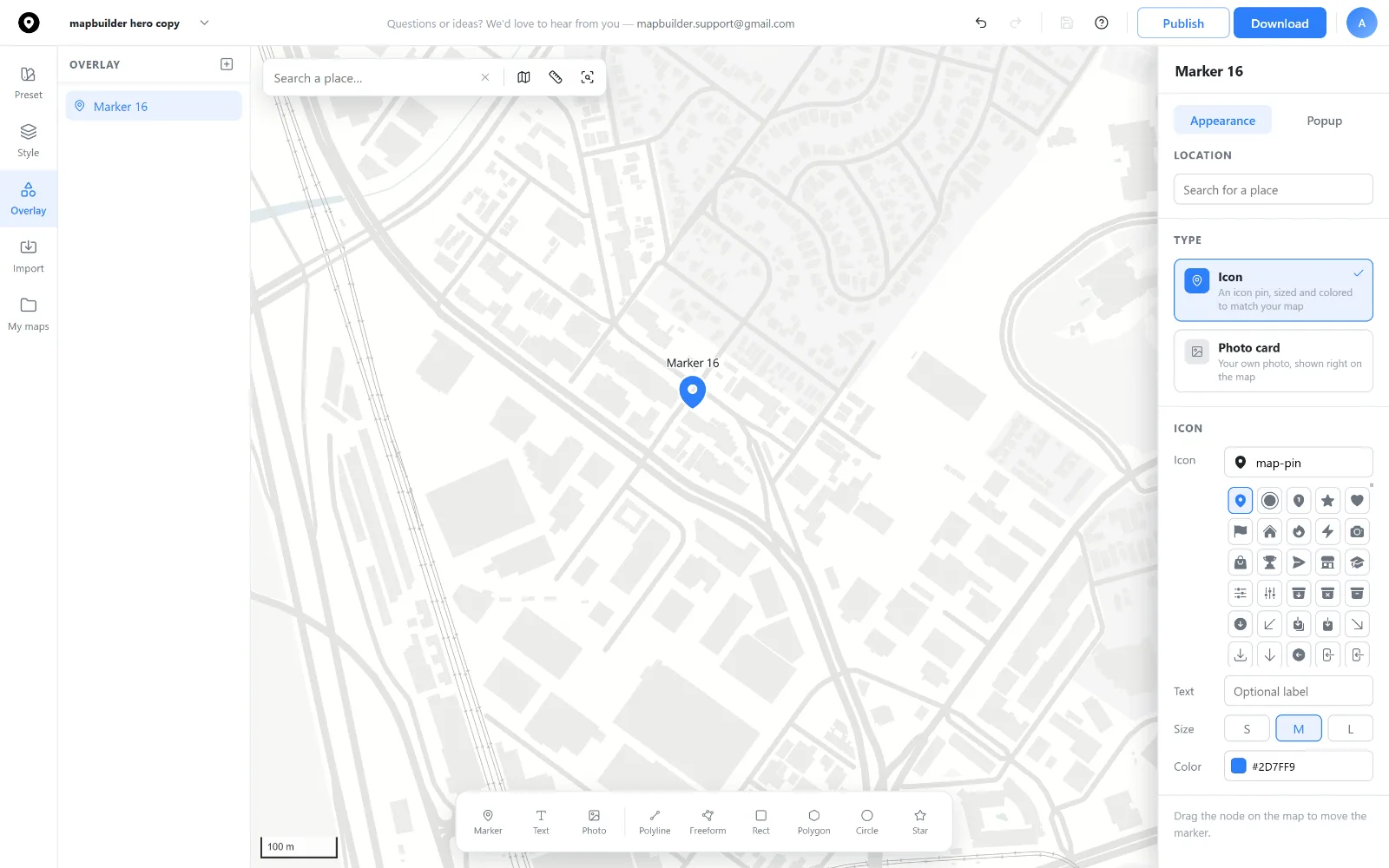
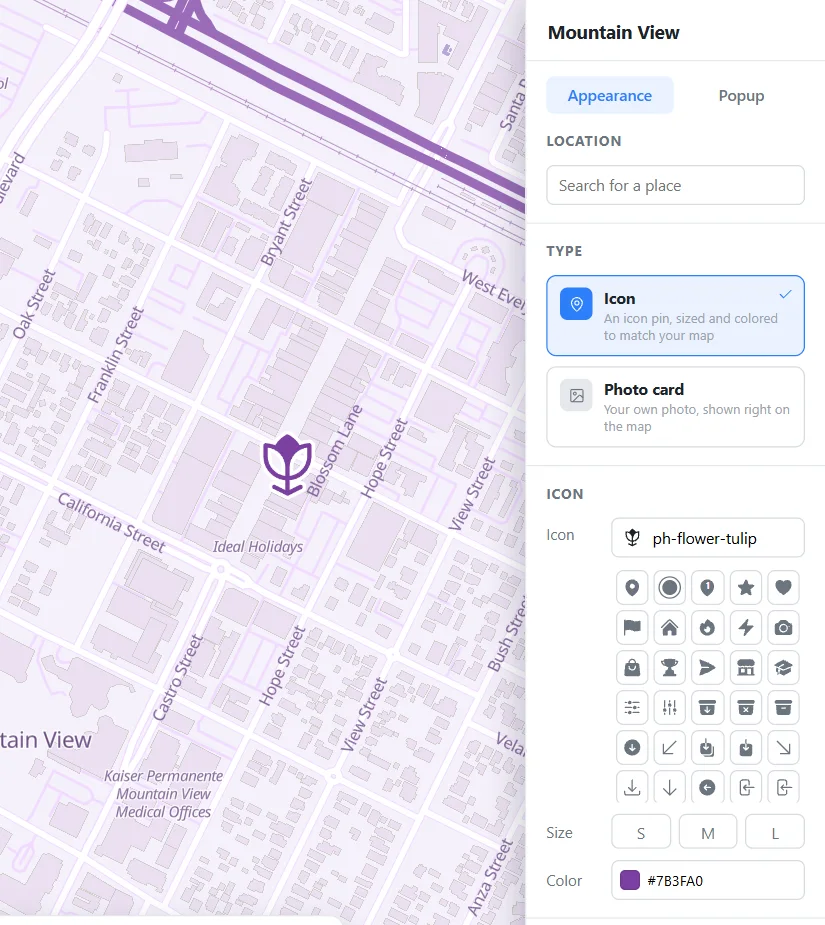
A marker can be an Icon or a Photo card. Search more than 1,500 icons, such as a flower, then set the size and your brand color. Or upload a photo, or paste its URL, and that picture becomes the marker on the map, as each storefront does here.
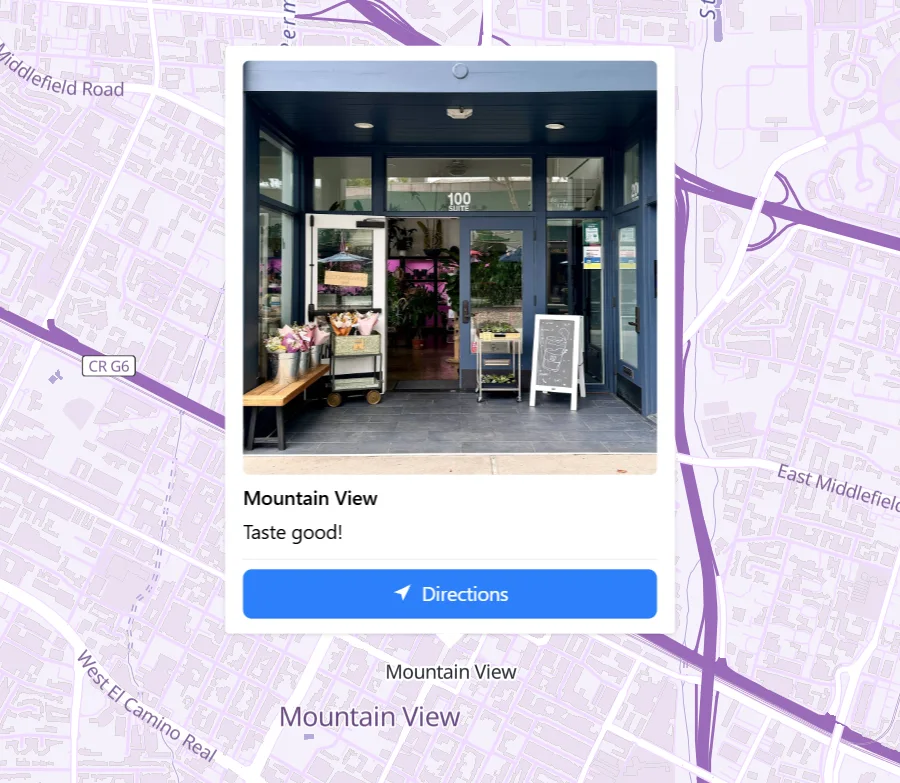
Open the marker's Popup tab to add photos, a description and up to two buttons. Navigation is on by default and gives customers directions to that location. Turn on Link to add a second button for your online shop or a booking page.
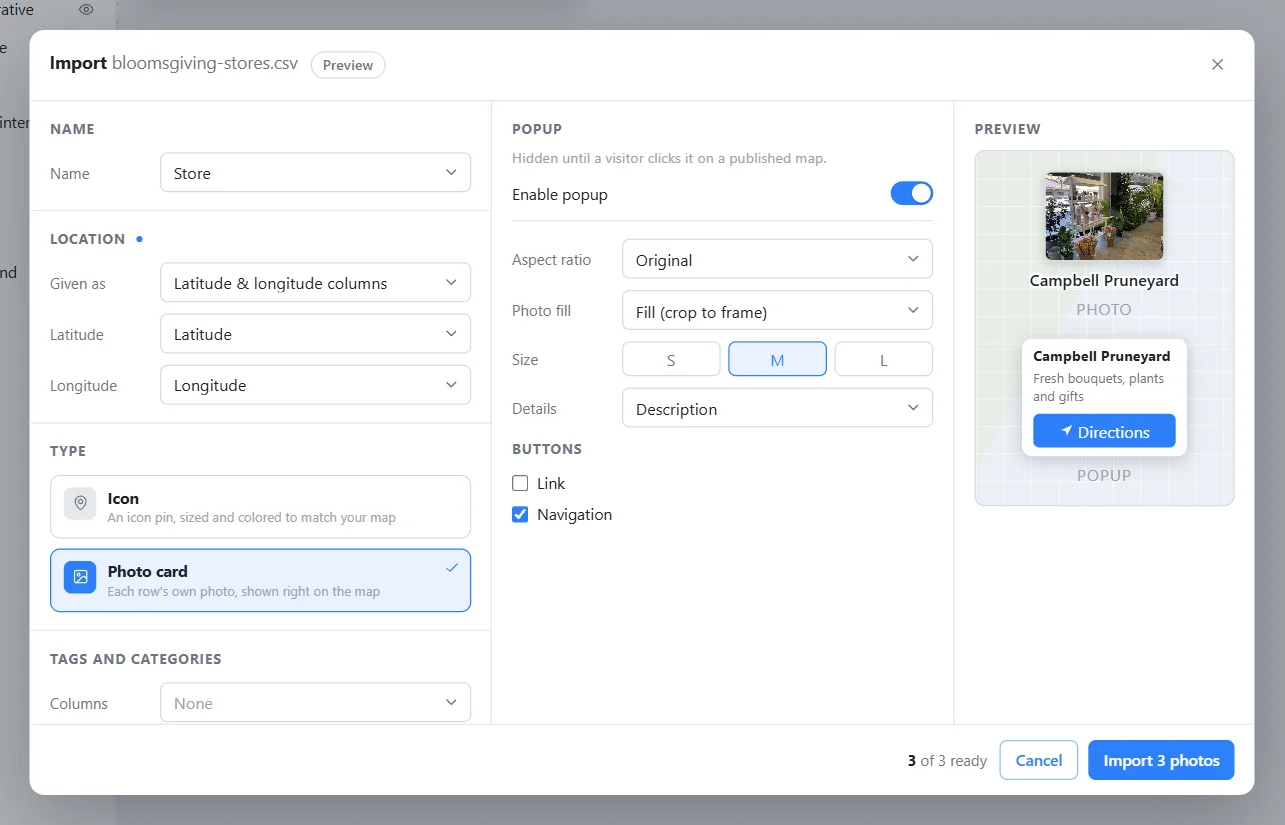
Have a spreadsheet of stores? Import a CSV and match the columns: name, address or coordinates, photo, and so on. Or copy a finished marker with Ctrl+C and Ctrl+V, so its icon and popup carry over, then search the next address. Link a Google Sheet, and you can pull changes to the map again when your stores change.
Click an empty part of the map and turn on the Overview panel. Add your logo or a brand photo and a description, then choose how each location appears in the list. Visitors can search it, and tapping a row jumps to that store and opens its popup.
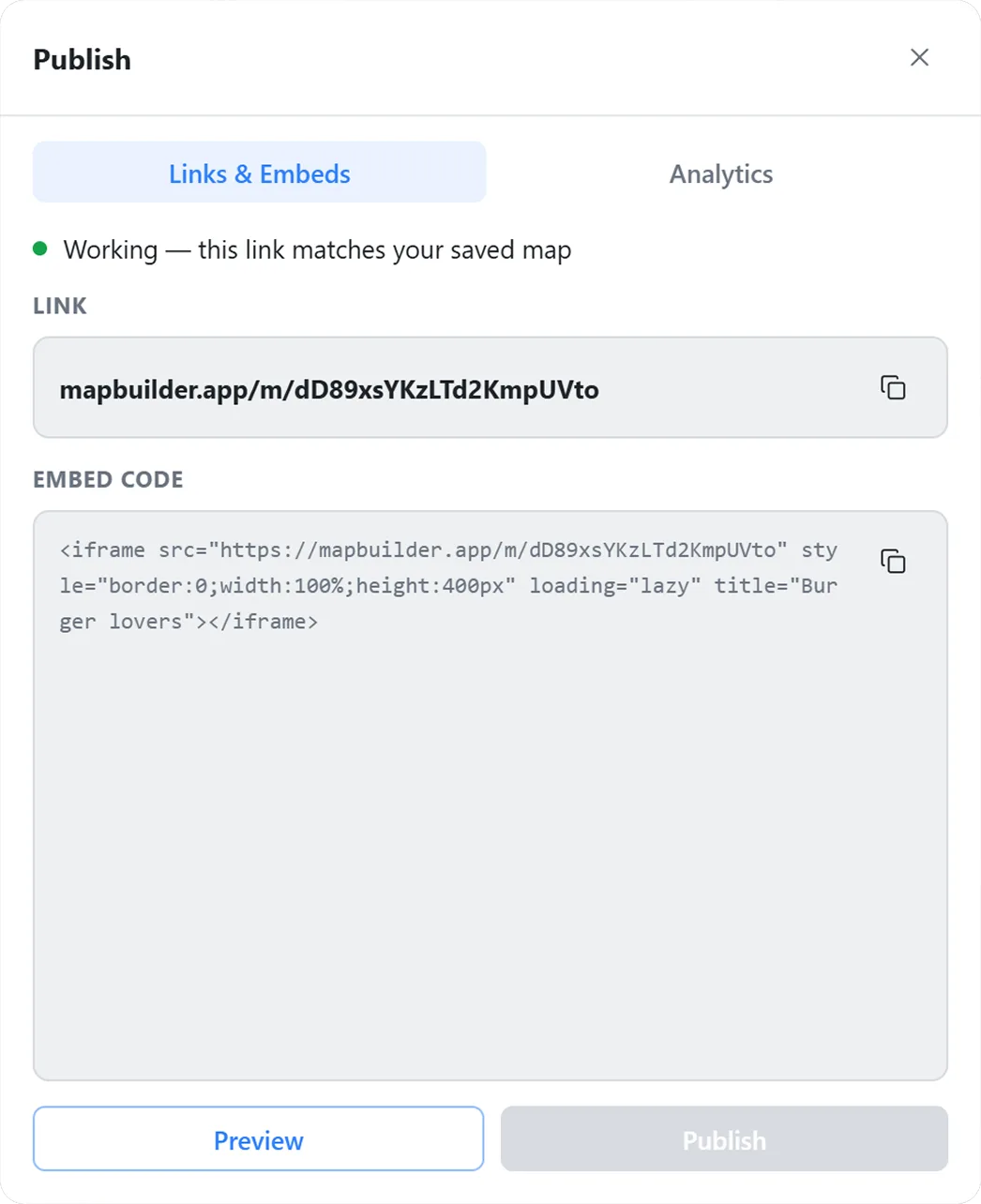
Sign in, save the map and publish. You get a link and an embed code to paste into Shopify, WordPress, Wix, Squarespace or any site that allows an iframe. An Analytics tab shows the views and clicks for each location, and any later edit you publish updates the map on your site, with no new code.
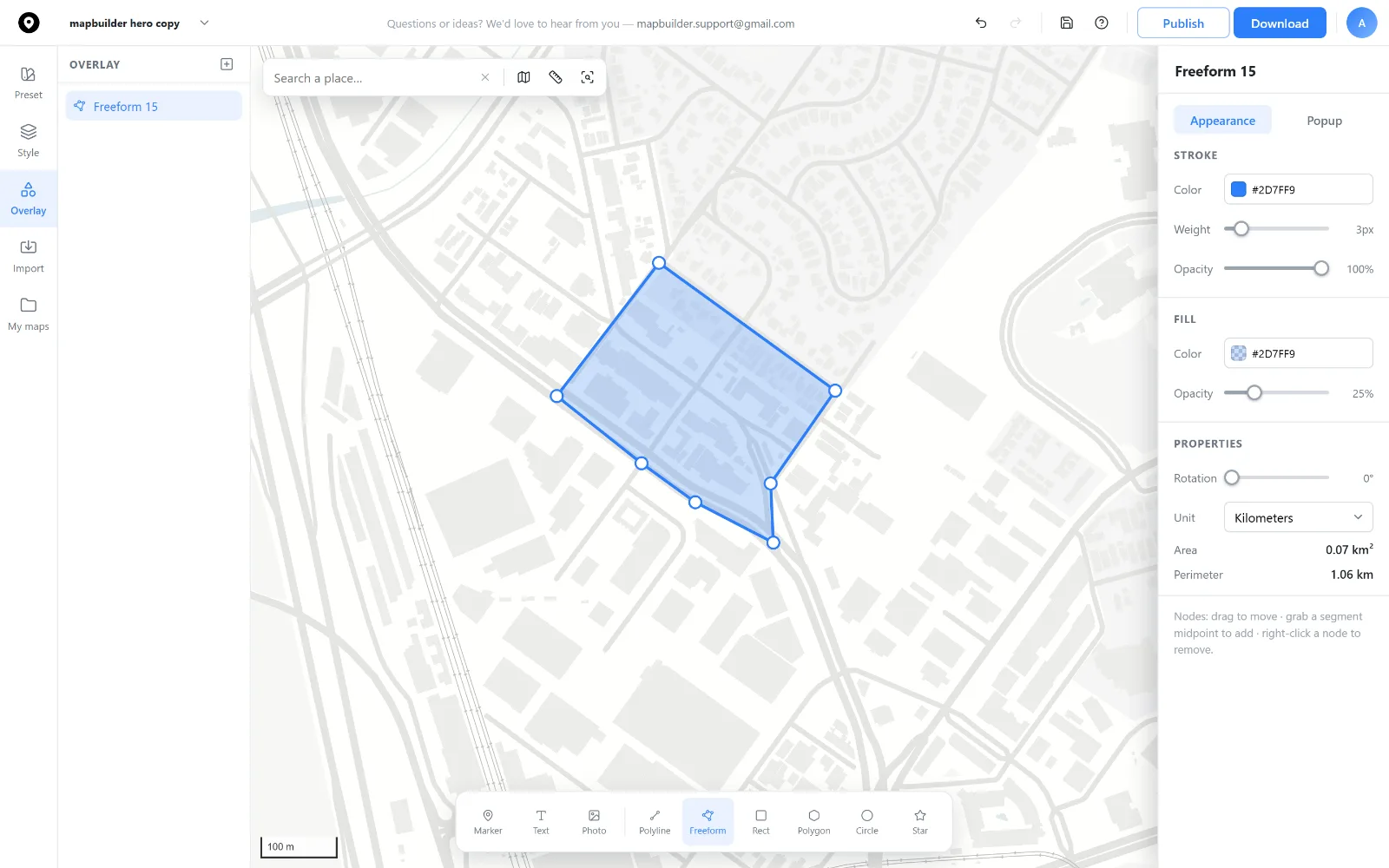
Draw a Polygon or a Circle around a location to show a delivery zone or service area. The same map can be downloaded for business cards, local ads and in-store signs, with commercial use allowed.
Start free, with up to 30 locations on a published map and no card needed.
Yes. The free plan publishes and embeds a map with up to 30 locations and 10,000 views a month, with ads in the editor. Pro raises this to 150 locations and Business to 1,000.
No. You build the map in the editor and paste one embed code into your site. There are no map API keys to set up.
On every plan, customers can search the location list by name. On a Business plan, the published map also lets them search for a place and filter stores by distance.
Yes. Import a CSV of store addresses or coordinates, or link a Google Sheet. Looking up addresses from a spreadsheet is a paid feature. Importing coordinates is free.
 Map builder